Compliance reports
The compliance reports page at /compliance/reports produces a point-in-time audit of every worker's document status. Use it for internal audits, client due-diligence requests, or regulatory inspections.
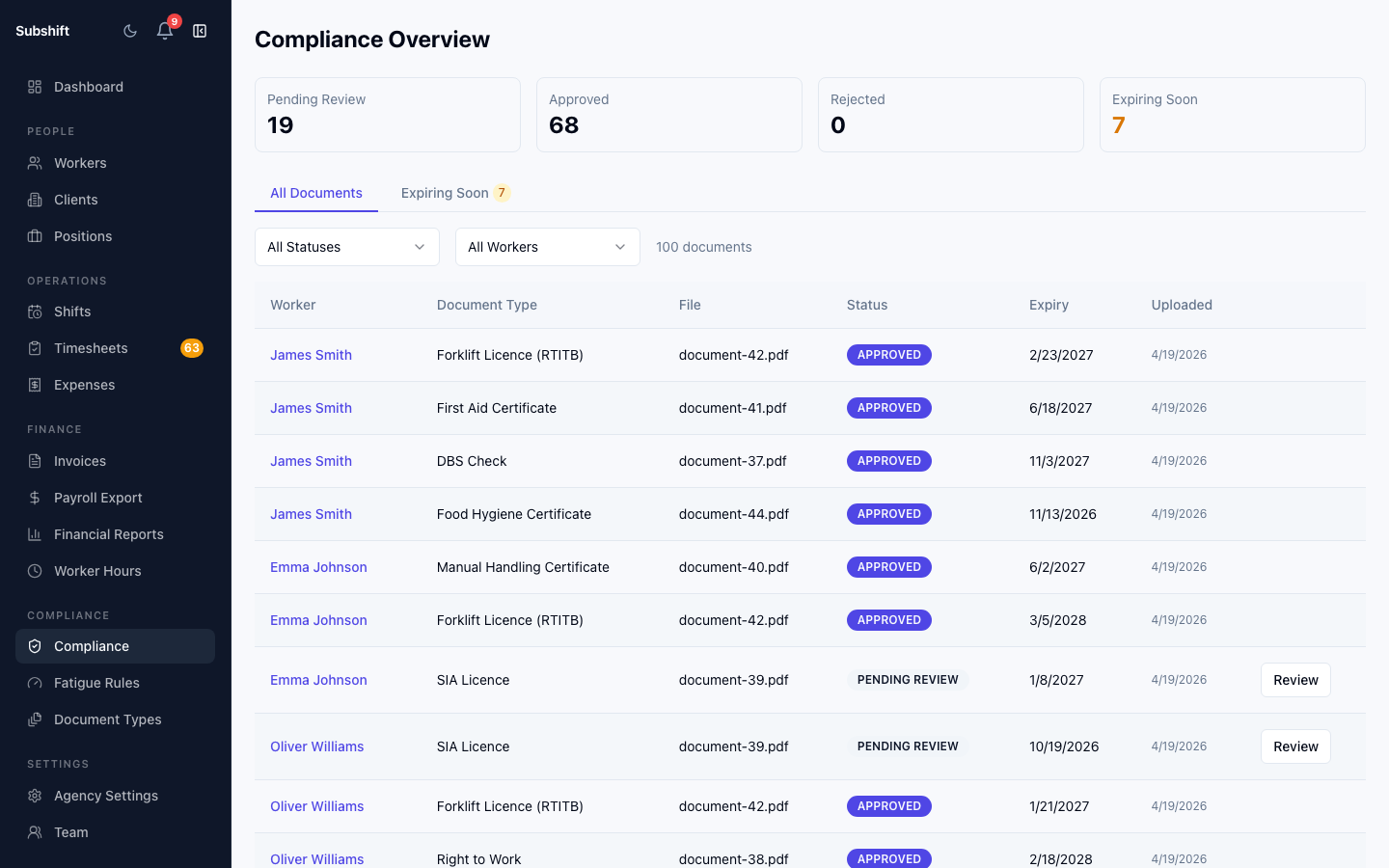
Opening the report
- Click Compliance in the sidebar.
- Select Reports.
Reading the report
The report displays a table with one row per worker and one column per configured document type. Each cell shows:
- Green — document uploaded, not expired, and not expiring within the warning window.
- Amber — document uploaded but expiring within the next 30 days (or within the document type's configured warning threshold).
- Red / Missing — document expired or not yet uploaded. Worker is non-compliant for this requirement.
- N/A — this document type is not required for this worker's positions.
Filtering
Use the filter bar to narrow the report to:
- A specific document type
- A specific worker status (ACTIVE only, ALL)
- A compliance status (non-compliant only, expiring soon, all)
Tip
Filtering to Non-compliant only and then exporting gives you a targeted list to chase with workers or their managers.
Exporting the report
- Apply any filters you want.
- Click Export CSV.
- The download includes all visible rows and columns, plus the expiry date for each document.
Note
The export reflects the data at the time of download. If you need a historical snapshot (e.g. compliance status as of last month), that is not currently available — the report always shows the current live state.
Related
- Compliance overview — at-a-glance worker compliance status
- Managing documents — upload and replace worker documents
- Audit log — system-wide event audit trail