Shift detail
The shift detail page shows the full picture for a single shift request: the position and timing, which workers have been assigned, their acceptance status, and any notes. You can also cancel or edit a shift from here.
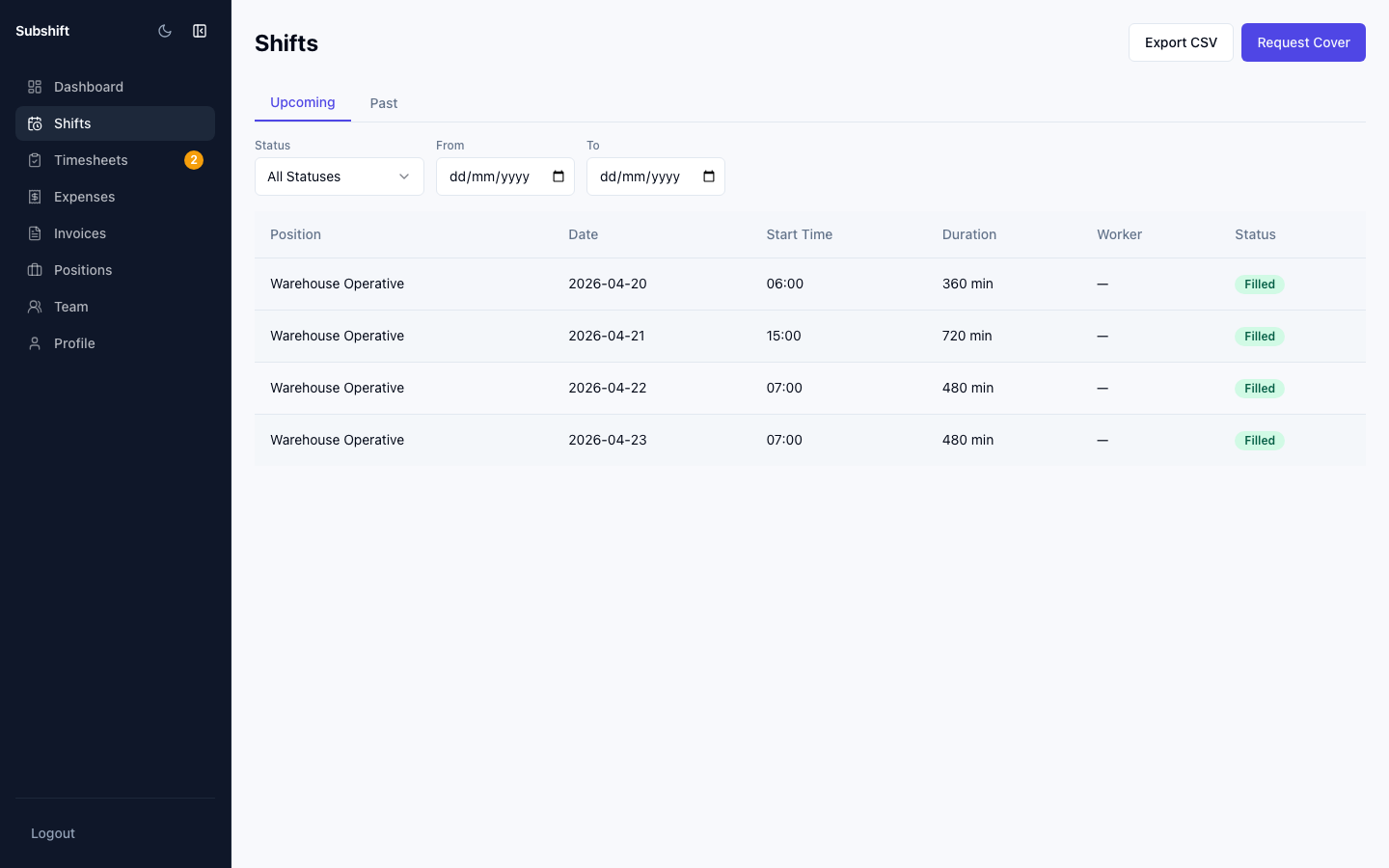
Opening a shift detail
From the Shifts list, click any shift row to open its detail page.
Shift summary
The top section shows:
- Position, date, start time, and duration
- Number of workers needed (slots)
- Current fill status
- Any notes you added at request time
Assigned workers
The workers section lists each slot and its status:
- Notified — a worker has been contacted but hasn't responded yet.
- Accepted — the worker has confirmed they will attend.
- Declined — the worker declined. Your agency is trying the next eligible worker.
Note
Cancelling a shift
- Click Cancel shift.
- Confirm the cancellation in the dialog.
Cancelling a shift notifies your agency and any workers who have already accepted. Workers with accepted slots are released from the commitment.
Warning
Editing a shift
You may be able to edit a shift's notes or timing while it is still in Requested status. Once workers have been notified or accepted, editing is restricted. If you need to change a shift after it is being filled, contact your agency directly.
Related
- Shifts overview — back to the full shift list
- Timesheets — after the shift, approve timesheets here
- Requesting a shift — open a new request