Availability
Your availability tells your agency when you're free to work. The more accurately it reflects your real schedule, the better the shift offers you'll receive — and the fewer offers you'll have to decline.
Opening availability settings
- Tap Profile in the bottom navigation.
- Tap Availability.
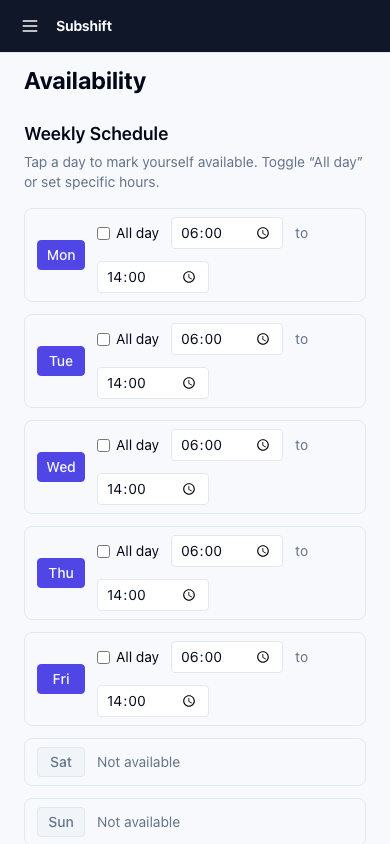
Setting your recurring weekly availability
The weekly schedule lets you set the days and times you're generally available. This repeats every week unless you override a specific date.
- Tap a day of the week to toggle it on or off.
- If a day is on, tap it again to set your available time range for that day (e.g. Mon 06:00–22:00).
- Tap Save.
Tip
Blocking specific dates
If you're unavailable on a specific date (holiday, appointment, etc.) but are otherwise available that day of the week, add a date block:
- Tap Add date block.
- Select the date (or a range of dates).
- Optionally add a note for your own reference.
- Tap Save.
Date blocks override your weekly schedule for those specific dates. Your agency will not offer you shifts on blocked dates.
Note
Fatigue rules and rest periods
Your agency may have fatigue rules configured. These automatically prevent you from being offered a shift too soon after a previous one — for example, requiring an 11-hour rest period between shifts. If you're not receiving offers for times you're available, a fatigue rule may be active. Contact your agency if you have questions about this.
Related
- Accepting a shift — how to respond when an offer arrives
- Positions — positions also affect which offers you receive
- Fatigue regulations — how Subshift enforces rest periods