Managing compliance documents
Each worker has a compliance document section on their profile where you can upload, replace, and remove the certificates, licences, and checks your agency requires. This guide explains the full document lifecycle.
Navigating to a worker's documents
- Go to Workers and click the worker's name.
- Select the Compliance tab on the worker detail page.
Uploading a document
- Click Upload document (or the + button next to a document type).
- Select the document type from the dropdown (e.g. "Driving Licence", "DBS Check", "Right to Work").
- Choose the file to upload (PDF, JPG, or PNG).
- Enter the expiry date if the document has one. Leave blank for documents without expiry.
- Click Upload.
Tip
Replacing an existing document
When a document is renewed (e.g. a driving licence is re-issued), you should replace the old version rather than upload a duplicate:
- Click Replace next to the existing document entry.
- Upload the new file and update the expiry date.
- Click Save.
The previous version is retained in the document audit trail but is no longer the active document for compliance purposes.
Note
Setting the expiry date
Expiry dates drive the "expiring soon" alerts in the compliance overview. Set the expiry date to the date printed on the document. If the document type is configured with a default expiry period in Settings → Document types, the expiry date will be pre-filled when you upload — you can still edit it.
Removing a document
- Click the Remove link next to the document.
- Confirm the removal in the confirmation dialog.
Warning
Expiry alerts
Subshift automatically sends proactive alerts when a document is approaching its expiry date. Alerts go to two places:
- Agency admin notification — the agency receives an in-app notification and email when a document reaches the configured warning threshold for its type.
- Worker notification — the worker receives a push notification and email through the worker app, prompting them to arrange renewal and upload the new document.
The lead time for alerts is configured per document type in Settings → Document types using the Renewal warning days field. For example, set renewalWarningDays: 60 on a driving licence type to trigger alerts 60 days before expiry.
Tip
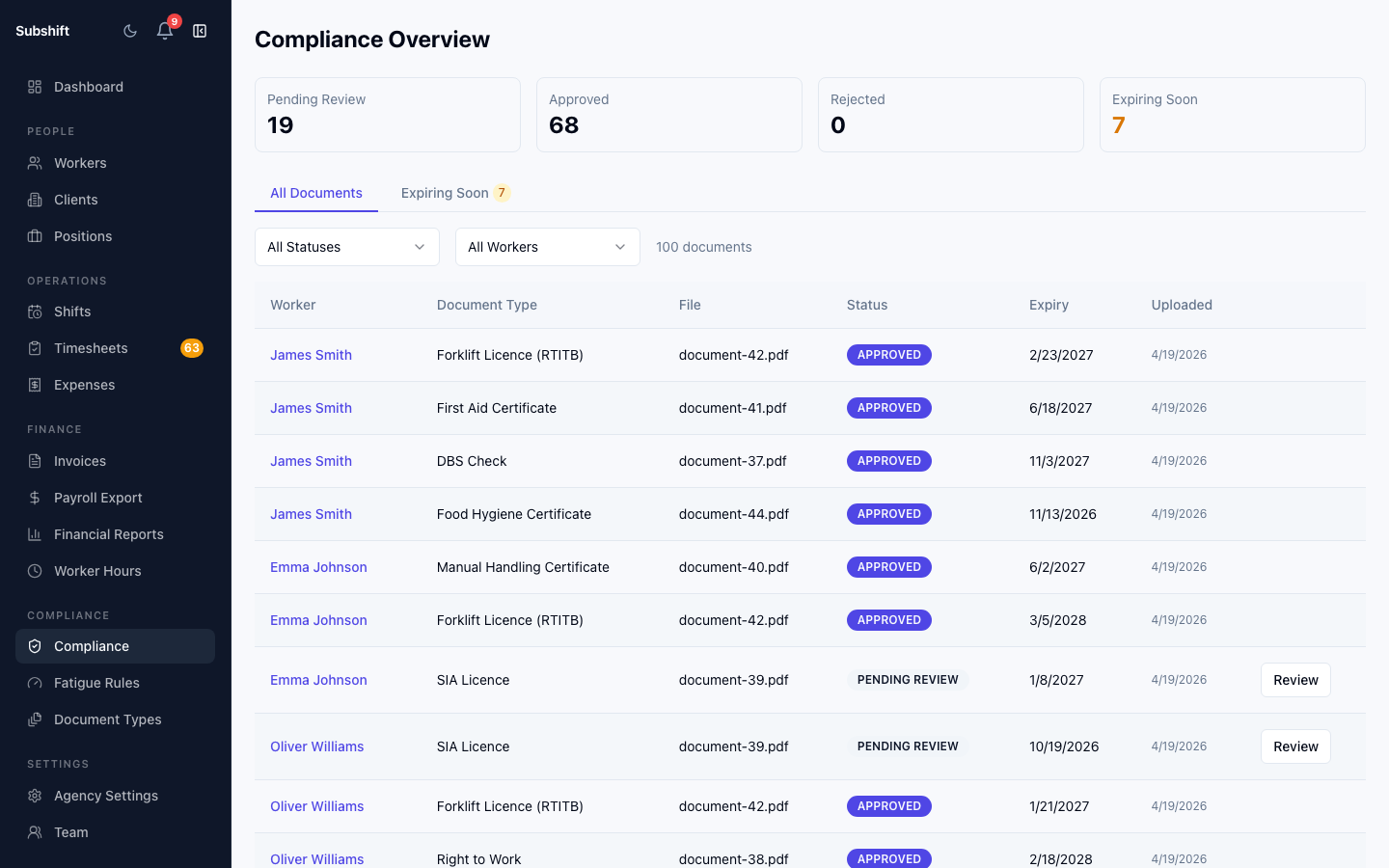
The Compliance section of the agency dashboard shows a summary panel of all workers with expiring or already-expired documents. Click any row to go directly to that worker's compliance tab.
Document audit trail
The document audit trail section at the bottom of the Compliance tab shows every upload, replacement, and removal event, with the date and the user who performed the action. This record is immutable and can be exported via the Compliance reports page.
Related
- Compliance overview — overall worker compliance status
- Document types — configure which documents are required and their default expiry
- Compliance reports — export compliance records