Working a shift
This page covers what to do on the day of your shift — from arriving at the site through to submitting your timesheet once you're done.
Before you go
- Open the shift detail in the app and re-read any notes from the agency or client — these often include site-specific instructions (entrance, parking, who to report to).
- Make sure your phone is charged so you can submit your timesheet at the end of the shift.
Tip
Save the site address to your maps app the night before so you're not scrambling in the morning.
During the shift
Work as instructed by the site supervisor. If anything unusual happens — an early finish, an extended shift, or an accident — note it down so you can record it accurately on your timesheet.
Submitting a timesheet
After your shift ends, submit a timesheet to record the hours you actually worked. The agency and client use this to calculate your pay and generate invoices.
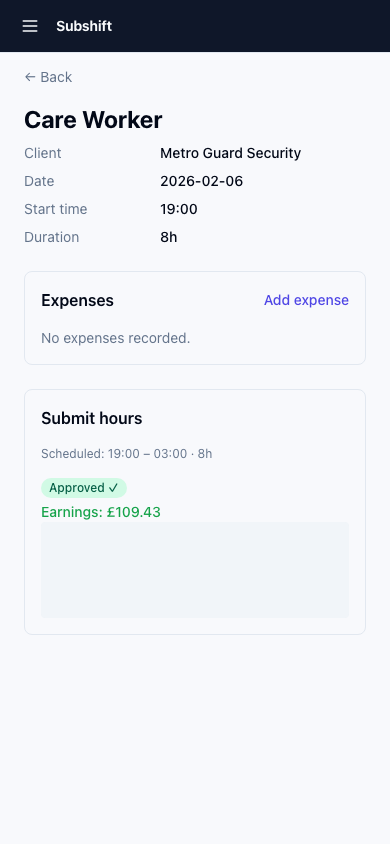
- Open the app and go to Shifts → Past.
- Tap the completed shift.
- Tap Submit timesheet.
- Enter your actual start time and actual end time.
- Record any break taken (duration in minutes).
- Add any notes — for example, if you finished early at the client's request, or if there was an issue on site.
- Tap Submit.
Note
Submit your timesheet as soon as possible after the shift ends — ideally before you leave the site. Late submissions can delay your payment.
After submission
Your timesheet goes to your agency (and possibly the client) for approval. Once approved, it is included in your next payroll run. You can see the status of submitted timesheets in the shift detail: PENDING_APPROVAL → APPROVED.
Warning
If your timesheet is rejected, you'll receive a notification with a reason. Contact your agency to resolve the discrepancy before the payroll deadline.
Related
- Shifts overview — find and manage your shifts
- Profile — keep your bank details up to date for payroll
- Accepting a shift — how shift offers work