Shift groups
A shift group is the parent entity for a shift occasion. It defines the client, position, date, and time — everything shared by all workers on that shift. Each worker slot underneath is a child shift.
For example, if you need 3 healthcare assistants at Northfield Care Home on Friday at 8am, you create one shift group (3 workers required). Subshift creates 3 child shifts inside it, each notified and filled independently.
Group detail page
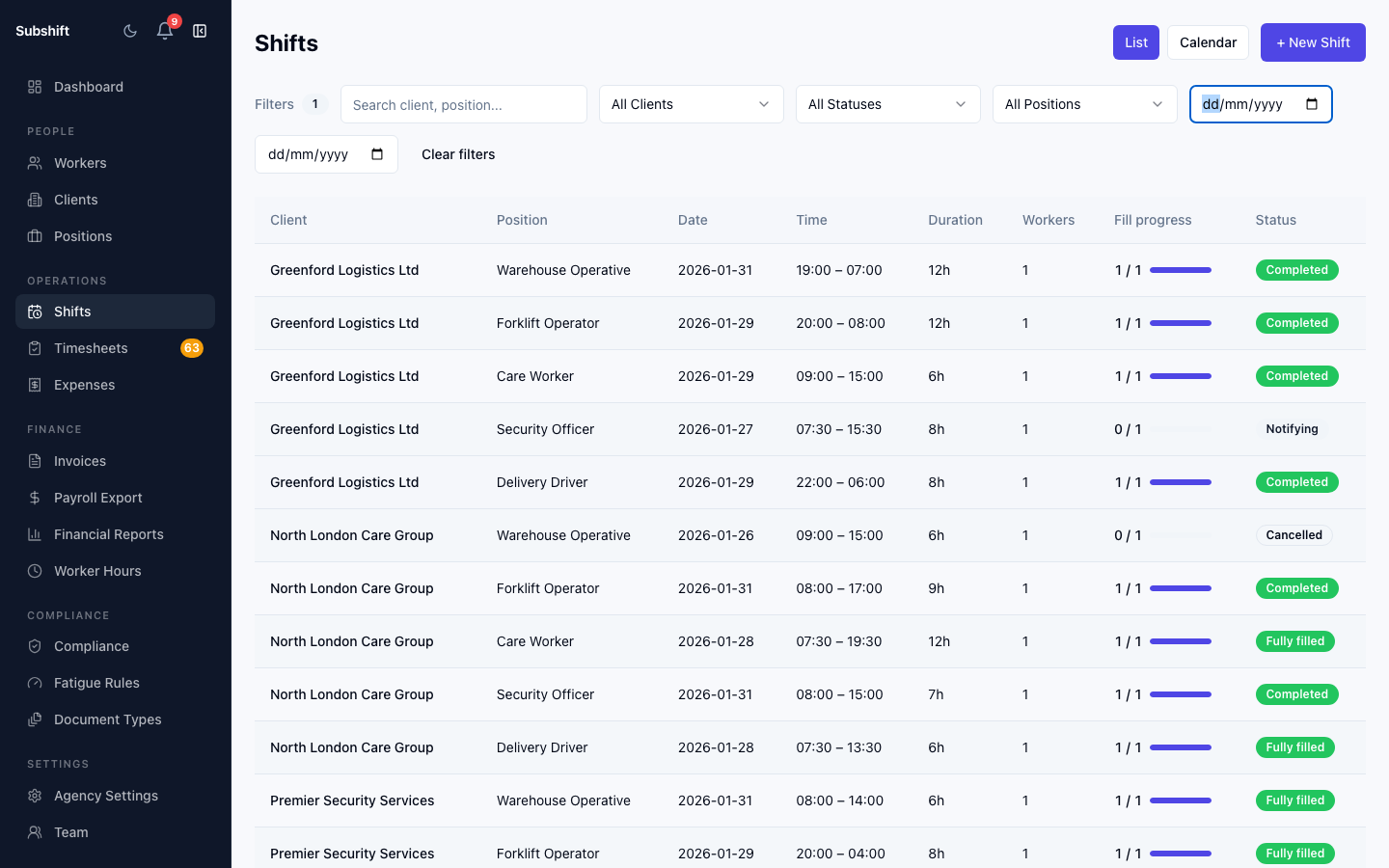
Click any row in the shifts list to open the group detail page.
The detail page shows:
- Group header — client, position, date, time, and number of workers needed vs. filled.
- Child shifts table — one row per worker slot, each with its own status, assigned worker name, and notification history.
- Actions — cancel the whole group, or act on individual child shifts.
Child shift statuses
Each child shift has its own status independent of the others:
- Notified — a worker has been offered this slot and the timer is running (15-minute window).
- Accepted — the worker confirmed they are working this slot.
- Declined — the worker declined; the system is moving to the next candidate.
- Timed out — the worker did not respond in the window; next candidate notified.
Excluded workers
Below the child shifts table, the group detail page shows a collapsible Excluded workers section. This lists every worker who holds the required position qualification but was not eligible to be offered this shift — along with the specific reason they were excluded.
Possible exclusion reasons:
- Fatigue block — the worker would breach a BLOCK-severity fatigue limit if placed on this shift.
- Unavailability — the worker has marked themselves unavailable for this date or time.
- Shift overlap — the worker is already confirmed on another shift that overlaps this one.
- Compliance failure — one or more required compliance documents are expired or missing.
Use the filter by reason type control to narrow the list to a specific exclusion category — useful for identifying whether a shortage of eligible workers is a fatigue problem, an availability problem, or a compliance problem.
Note
Editing a child shift
To reassign a slot or modify notes on an individual child shift, click the row in the child shifts table and select Edit. You cannot change the date, position, or client at the child level — those are set on the group.
Note
Related
- Creating a shift
- Shifts overview
- Worker detail — shift history per worker