Timesheets
Timesheets are submitted by workers after they complete a shift. As an agency admin you review them, approve or reject each one, and then generate invoices from the approved set. This page explains how to navigate the timesheets list and understand the status lifecycle.
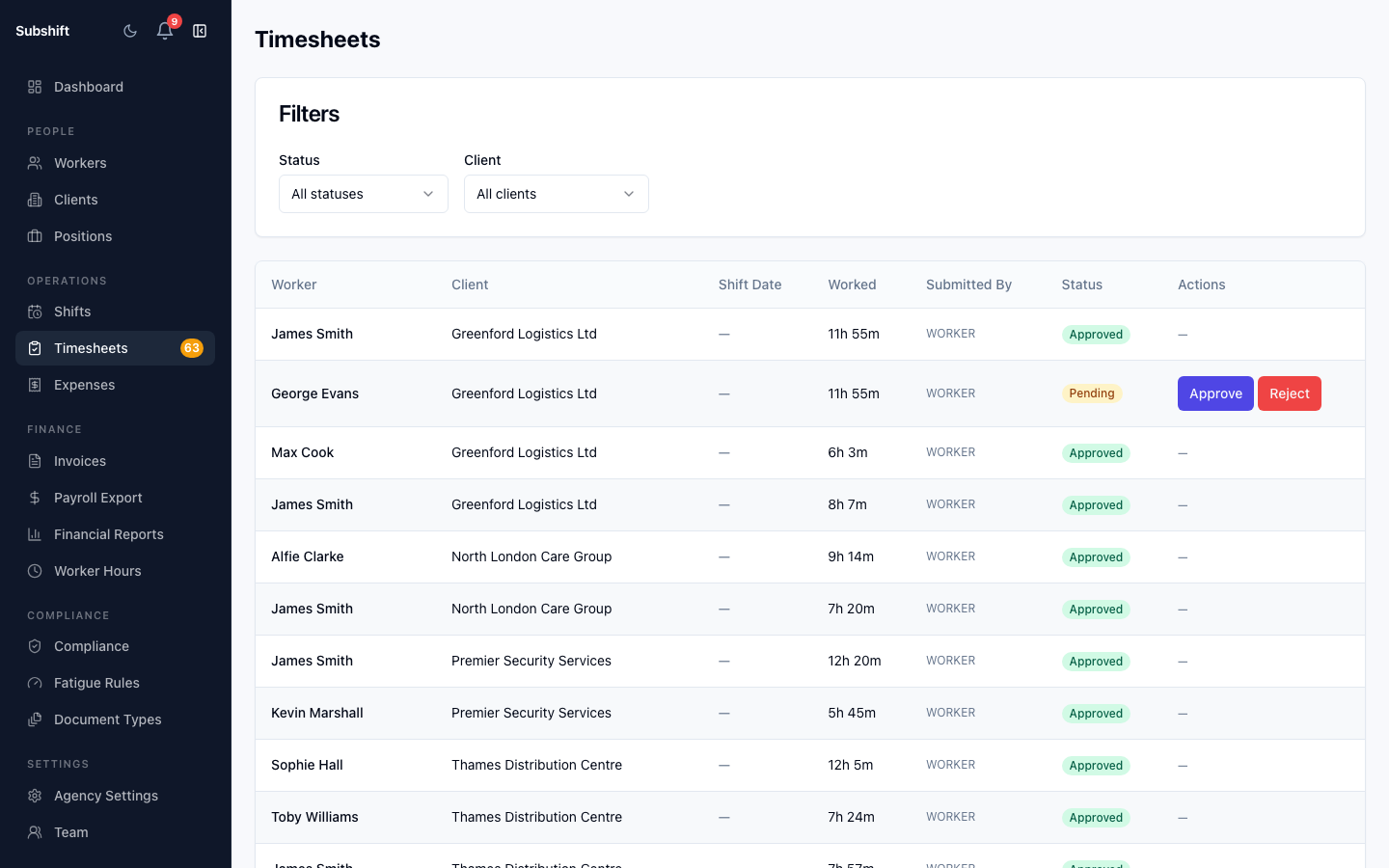
Navigating to timesheets
Click Timesheets in the left sidebar. The list shows all timesheets across your agency, newest first.
Filtering and sorting
Use the filter bar at the top of the list to narrow down by:
- Status — PENDING_APPROVAL, APPROVED, REJECTED, or AUTO_APPROVED.
- Client — view timesheets for a single client business.
- Worker — view one worker's submission history.
- Date range — filter by the shift date the timesheet covers.
Tip
To prepare for an invoicing run, filter to PENDING_APPROVAL and work through approvals before generating the invoice batch.
Timesheet status lifecycle
Each timesheet moves through the following statuses:
- PENDING_APPROVAL — submitted by the worker, waiting for review.
- APPROVED — accepted by the agency (or client, if client approval is enabled). The timesheet is now eligible to be included in an invoice.
- REJECTED — rejected with a reason. The worker is notified and may resubmit or contact the agency.
- AUTO_APPROVED — automatically approved after the configured approval window passes with no action.
Note
Only APPROVED and AUTO_APPROVED timesheets are included when you generate invoices. Pending or rejected timesheets are excluded from the invoice batch.
Related
- Approving timesheets — step-by-step review and approval workflow
- Generating invoices — creating invoice batches from approved timesheets
- Shifts overview — the shifts that produce timesheets