Requesting a shift
When you need cover at your site, submit a shift request through the portal. Your agency receives the request immediately and begins matching workers to your requirements.
Step 1: Open the new shift form
- Click Shifts in the sidebar.
- Click Request shift (or navigate directly to /shifts/new).
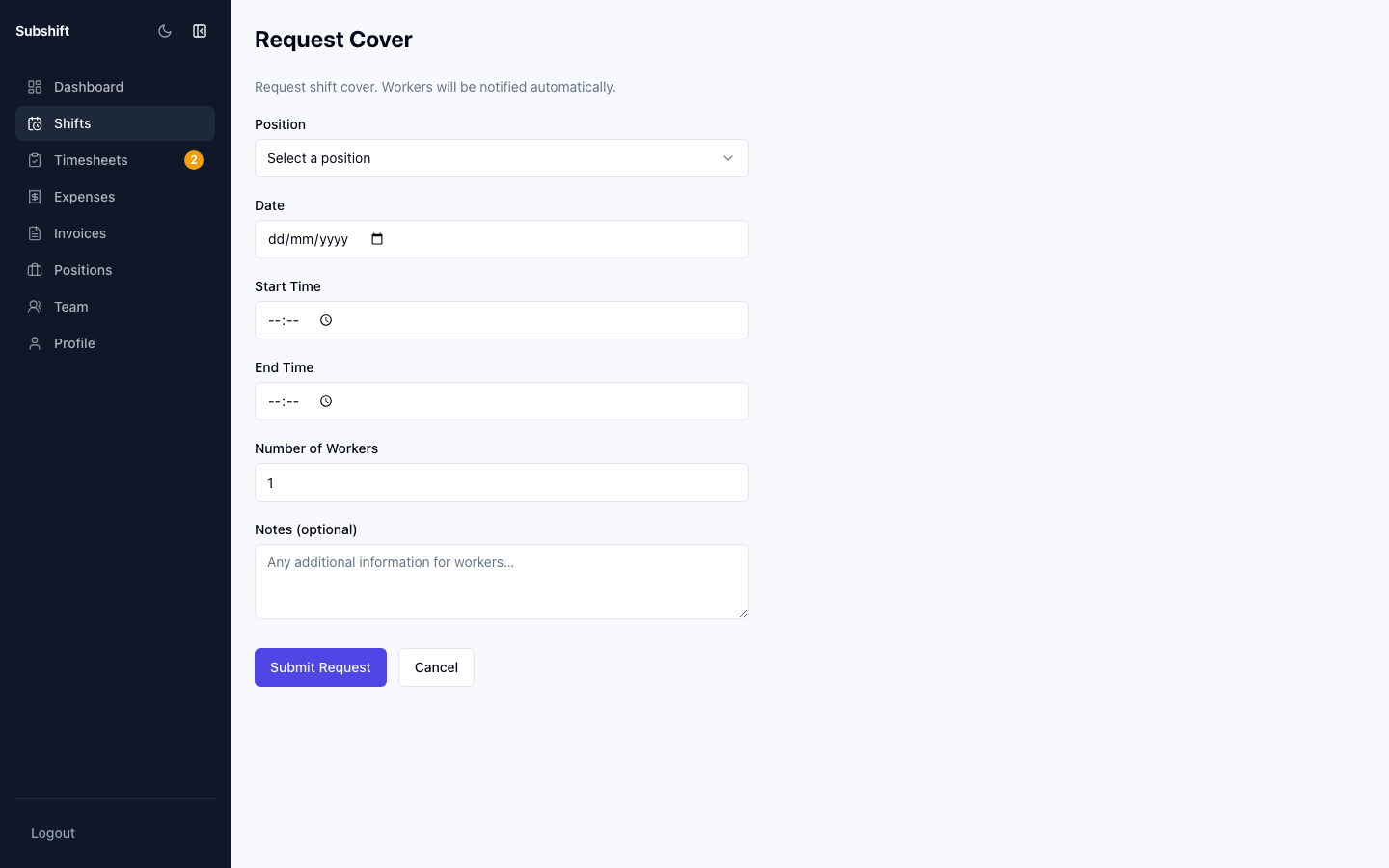
Step 2: Choose a position
- Select the Position you need from the dropdown. Only positions your agency has approved for your site are shown.
Note
If the position you need isn't in the list, contact your agency. They manage which positions are available at your site.
Step 3: Set the date and time
- Pick the Date for the shift.
- Set the Start time.
- Set the Duration in hours and minutes (or set an end time — whichever your agency's portal shows).
Step 4: Set the number of workers needed
- Enter the Quantity — how many workers you need for this shift.
Tip
If you need multiple workers for the same shift, set quantity to the right number rather than submitting separate requests. All slots appear in a single shift record, making it easier to track fill progress.
Step 5: Add notes (optional)
Use the Notes field to give the worker any useful site-specific information — for example, which entrance to use, dress code, or who to report to on arrival. Workers see these notes when they accept the shift.
Step 6: Submit
- Review the details.
- Click Submit request.
- The shift appears in your Shifts list with status Requested. Your agency will be notified immediately.
What happens next
Your agency reviews the request, identifies eligible workers, and begins contacting them. You can track progress in the shift detail — the status updates as workers accept. You don't need to do anything else until the shift is completed and timesheets are submitted.
Related
- Shifts overview — track all your shift requests
- Shift detail — see who's been assigned
- Positions — view positions approved for your site