Invoices
The Invoices section shows all invoices your agency has issued to your business. You can view line items, check payment status, and download invoices for your records.
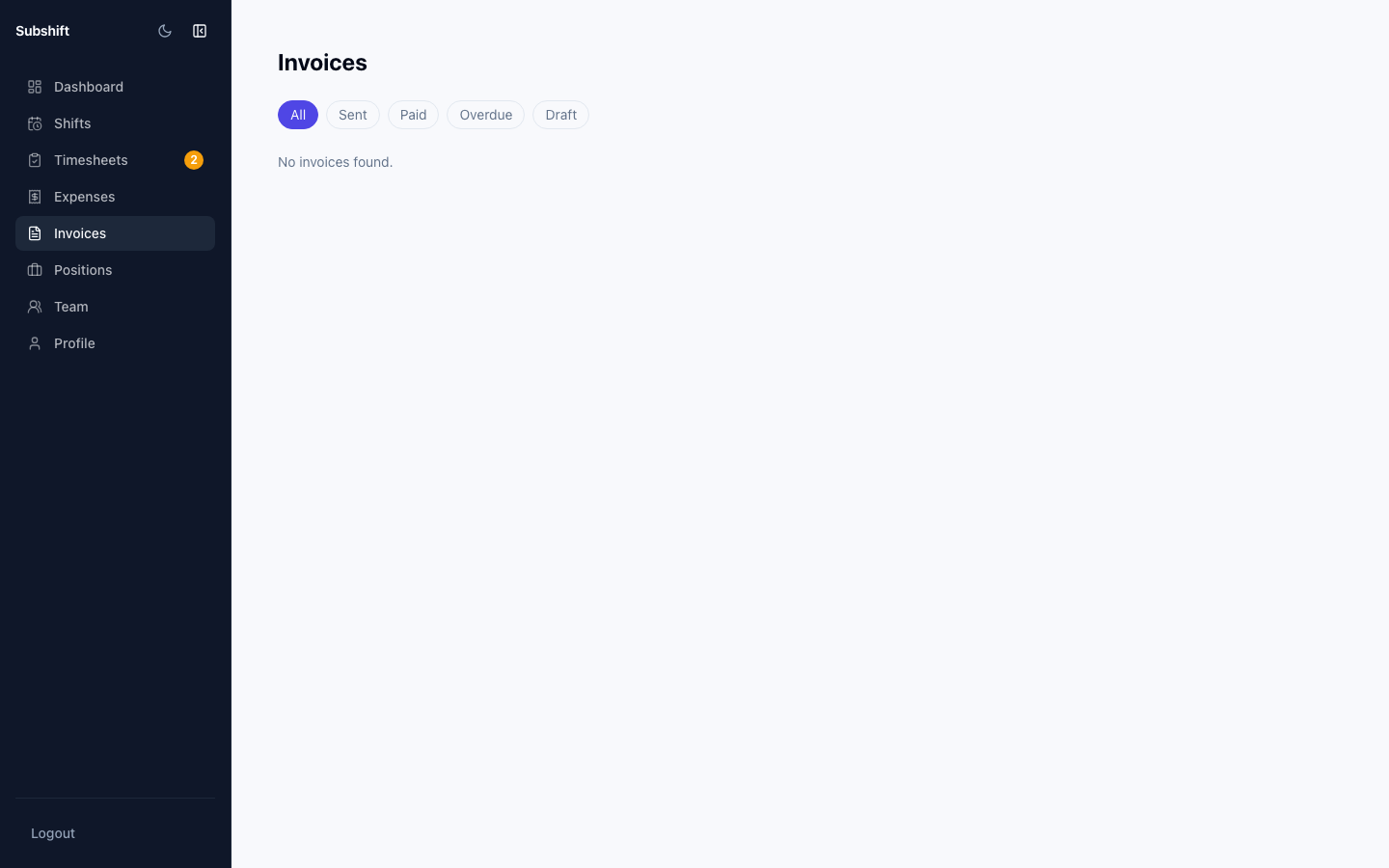
Navigating to invoices
Click Invoices in the left sidebar.
Reading the invoices list
Each row in the list shows:
- Invoice number — your agency's sequential invoice reference.
- Issue date — when your agency generated the invoice.
- Period — the shift date range this invoice covers.
- Total — the invoice amount.
- Status — SENT (awaiting payment) or PAID (marked paid by your agency).
Viewing invoice detail
Click any invoice to see its full breakdown. The detail page lists each shift's line item: the worker (or just the position and date if worker names aren't shown), hours, rate, and amount.
Note
If you spot a discrepancy in an invoice — for example, a shift you don't recognise or incorrect hours — contact your agency. Invoice corrections are handled on their side.
Downloading an invoice
On the invoice detail page, click Download PDF to save a copy for your accounts team.
Tip
Your finance team may want a copy of each invoice as it arrives. Set up a reminder to download invoices as soon as you receive notification from your agency.
Related
- Timesheets — approved timesheets become invoice line items
- Expenses — additional expenses may appear on invoices
- Profile — ensure your billing address is up to date