Timesheets
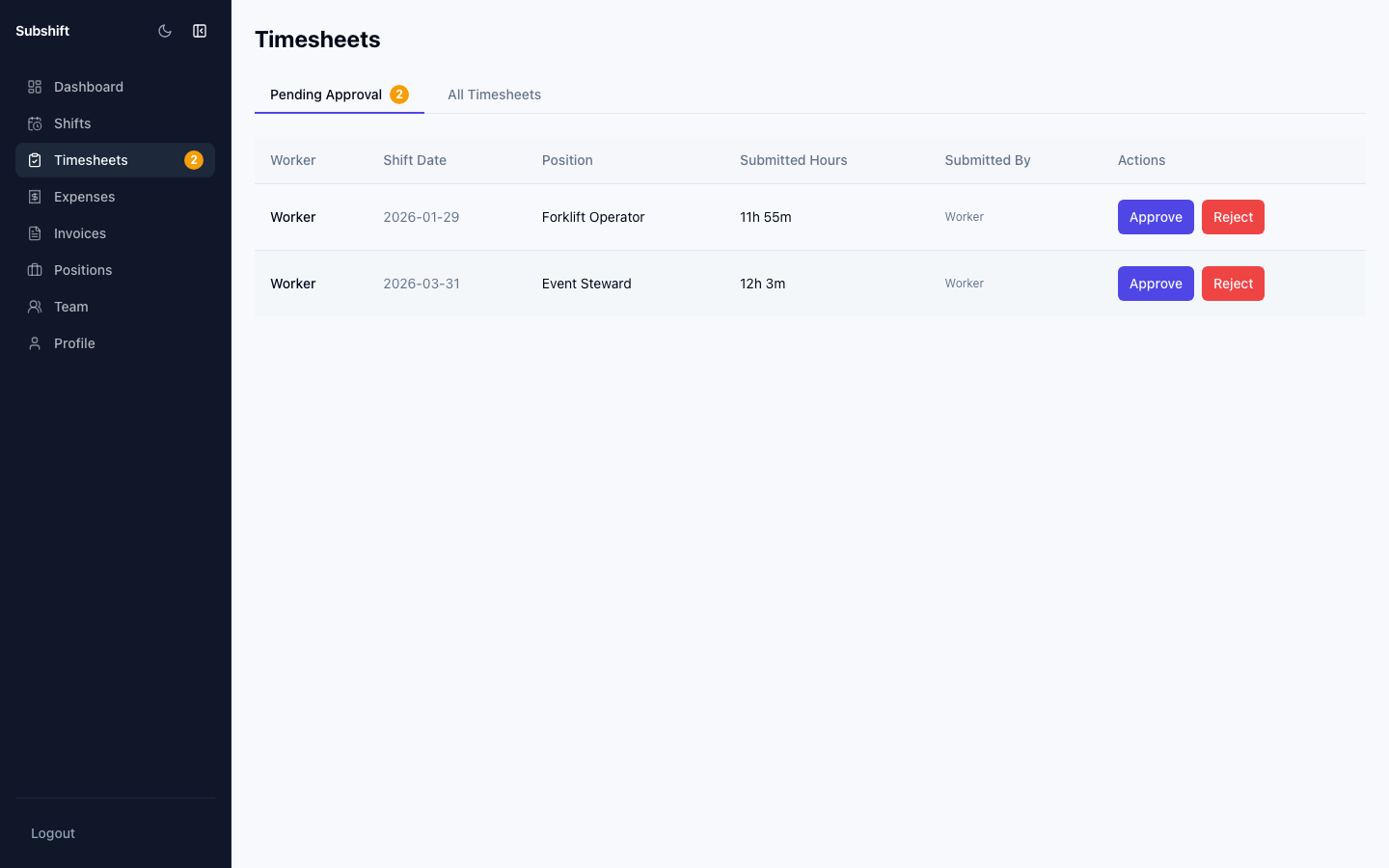
After a worker completes a shift at your site, they submit a timesheet recording the actual hours they worked. If your agency has enabled client-side approval, you'll see these timesheets in your portal and can approve or flag them before they're invoiced.
Note
Not all accounts have client-side timesheet approval enabled. If you don't see a Timesheets section in your portal, your agency handles approval on their end. Contact your agency if you're unsure.
Reviewing a timesheet
- Click Timesheets in the sidebar.
- Timesheets pending your review are listed at the top. Click any row to open it.
- Check the Scheduled vs Actual hours. If they match, approve it.
- If there's a discrepancy you weren't expecting, query it with the agency before approving.
Approving a timesheet
- Open the timesheet.
- Verify the hours are correct.
- Click Approve.
Approved timesheets are sent to your agency and will be included in the next invoice they generate for your business.
Tip
Approve timesheets promptly. Your agency may have an auto-approval window after which unapproved timesheets are automatically approved anyway — this prevents billing delays.
Querying a timesheet
If the hours submitted don't match what actually happened on site, contact your agency with the details rather than rejecting outright. Your agency handles the resolution between the worker and your site record.
Related
- Shift detail — see the original shift the timesheet relates to
- Invoices — approved timesheets become invoice line items
- Expenses — record any additional expenses from a shift