Dashboard
The dashboard is the first screen you see after logging in. It gives you a live snapshot of your agency operation: worker headcount, upcoming shifts, open slots that still need filling, and anything that needs your attention right now.
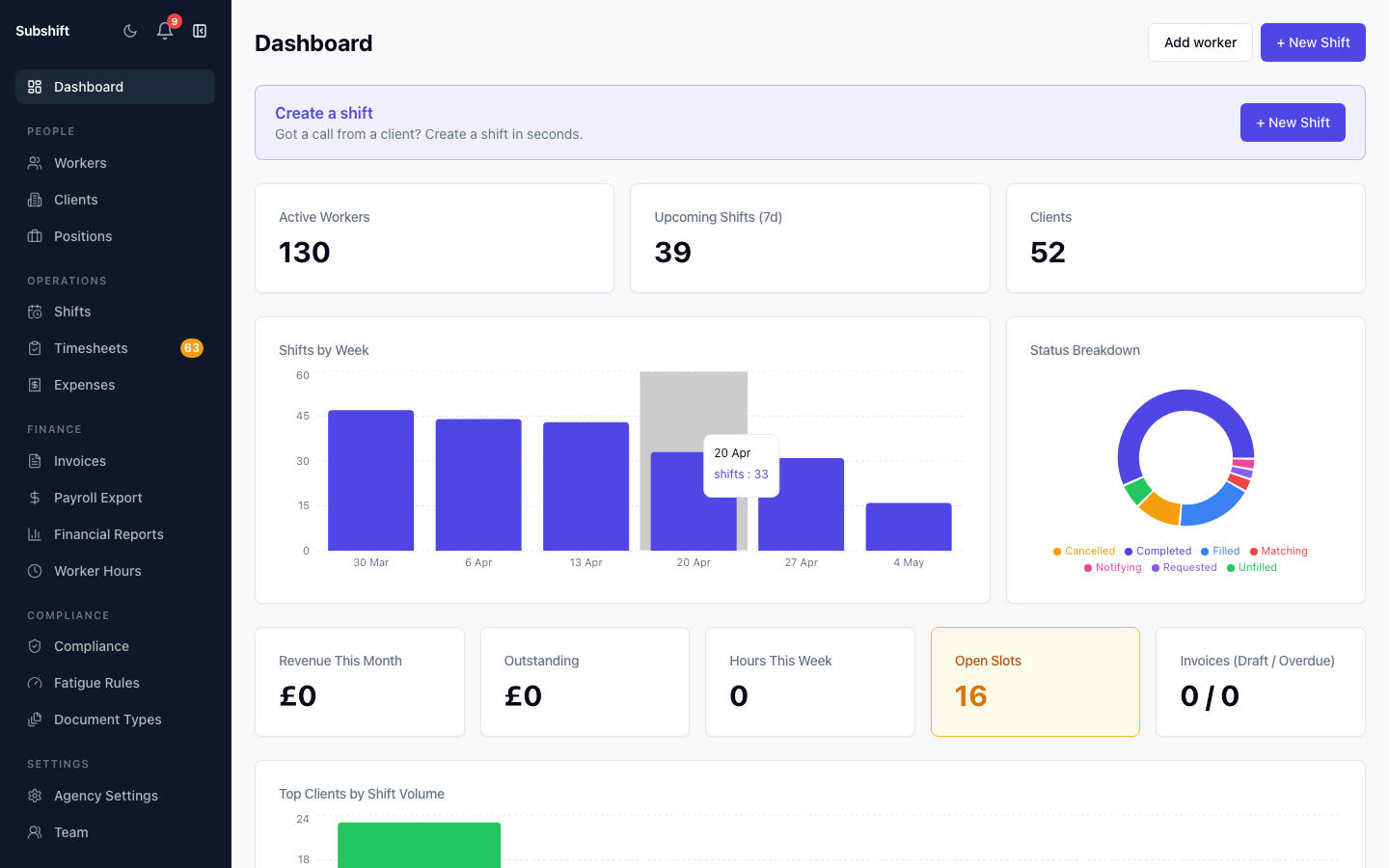
Stats cards
Four key numbers sit at the top of the dashboard:
- Active workers — total workers with ACTIVE status in your account.
- Upcoming shifts — shifts scheduled for today or later that are not yet completed or cancelled.
- Open slots — shift slots that are still unfilled and require a worker to be placed.
- Total clients — the number of client businesses you currently manage.
Tip
Needs attention
The "Needs attention" table lists shifts that are at risk of going unfilled — for example, shifts that have been in NOTIFYING status for a long time, or that have had all notified workers decline. These are ordered by date (soonest first).
Click any row to open the shift detail and see which workers have been notified, who has declined, and what the next step is.
Recent shifts
Below the "Needs attention" panel is a list of the most recently created or updated shifts. This is a quick way to check on shifts your team created in the last few hours without navigating to the full shifts list.
What to do when something is flagged
When the dashboard shows at-risk or unfilled shifts:
- Click the shift row to open the detail page.
- Review which workers were notified and whether any have declined or timed out.
- If no eligible workers remain, check the worker list for recently added workers with the correct position, or contact workers directly.
- If the shift cannot be filled, consider cancelling it to keep your data clean — cancelled shifts are excluded from fill-rate reporting.
Note
Related
- Shifts overview — view and filter all shifts
- Workers overview — review worker availability and compliance
- Compliance overview — manage compliance alerts