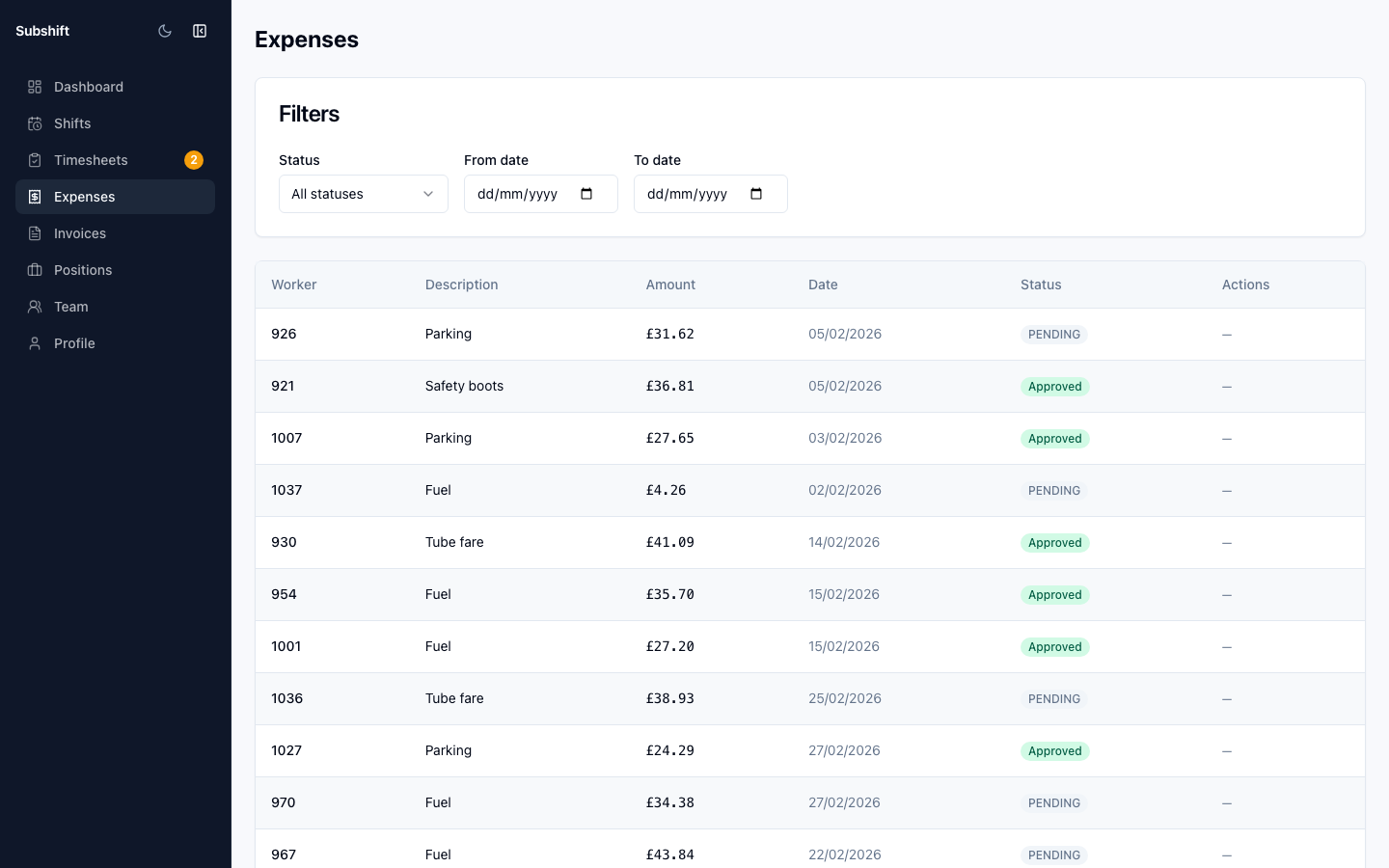
Expenses
If your site incurs reimbursable expenses related to a shift — such as equipment costs, travel contributions, or other site-specific charges — you can record them here for approval and inclusion in invoicing.
Note
The Expenses feature is only available if enabled for your account. If you don't see it in your portal, contact your agency.
Recording an expense
- Click Expenses in the sidebar.
- Click Add expense.
- Select the Shift this expense relates to.
- Enter a Description (e.g. "Parking — 3 hrs at NCP site car park").
- Enter the Amount.
- Upload a Receipt if required.
- Click Submit.
Expense approval lifecycle
- Submitted — your record has been received by the agency.
- Approved — the agency has accepted the expense. It will be included in the next invoice for the relevant period.
- Rejected — the agency has declined the expense, usually with a reason provided.
Tip
Submit expenses as soon as they occur — waiting too long can delay approval and inclusion in the correct invoice period.
Related
- Invoices — approved expenses may appear as line items on your invoice
- Shift detail — the shift an expense is linked to
- Timesheets — the parallel worker-hours record for the same shift