Accepting a shift
When your agency offers you a shift, you'll get a notification on your phone. You have a limited window to respond — accept to confirm you'll attend, or decline if you can't make it.
Step 1: Open the shift offer
You can open the offer two ways:
- Tap the push notification on your phone — it takes you straight to the shift detail.
- Open the app and go to Shifts → Available and tap the pending offer.
Step 2: Review the details
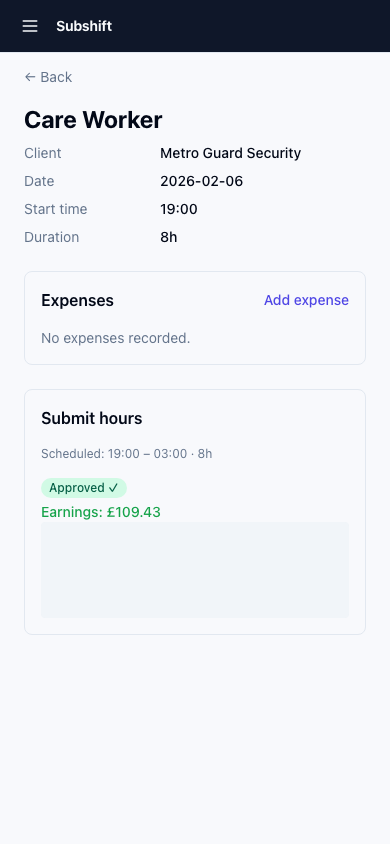
Before accepting, check:
- Site — where the shift is located.
- Position — the role you're being asked to fill.
- Date and time — confirm you're free.
- Duration — how long the shift is.
- Notes — any instructions from the site or agency.
Step 3: Accept or decline
Accept
- Tap Accept.
- The shift is confirmed. It appears in your Upcoming shifts list.
- Your agency and the client are notified that you'll be there.
Decline
- Tap Decline.
- The offer is passed to the next eligible worker. You won't receive this specific offer again.
Note
Declining a shift doesn't affect your standing with your agency, but regularly declining shifts for the same positions and times may cause your agency to review your availability settings.
What if I don't respond in time?
Shift offers expire after about 15 minutes if you don't respond. When an offer expires, it moves to the next eligible worker automatically. The offer will no longer be visible in your Available tab.
Tip
Enable push notifications so you don't miss offers. See Notifications for how to set this up and troubleshoot missed alerts.
Related
- Working a shift — what to do on the day
- Notifications — enable push alerts for shift offers
- Availability — control when you receive offers