Shifts overview
The shifts section is where you create, monitor, and manage every shift request your agency handles. Shifts are grouped — each group represents a single work occasion (a specific role, date, and client), and within a group there can be one or more individual shift slots for different workers.
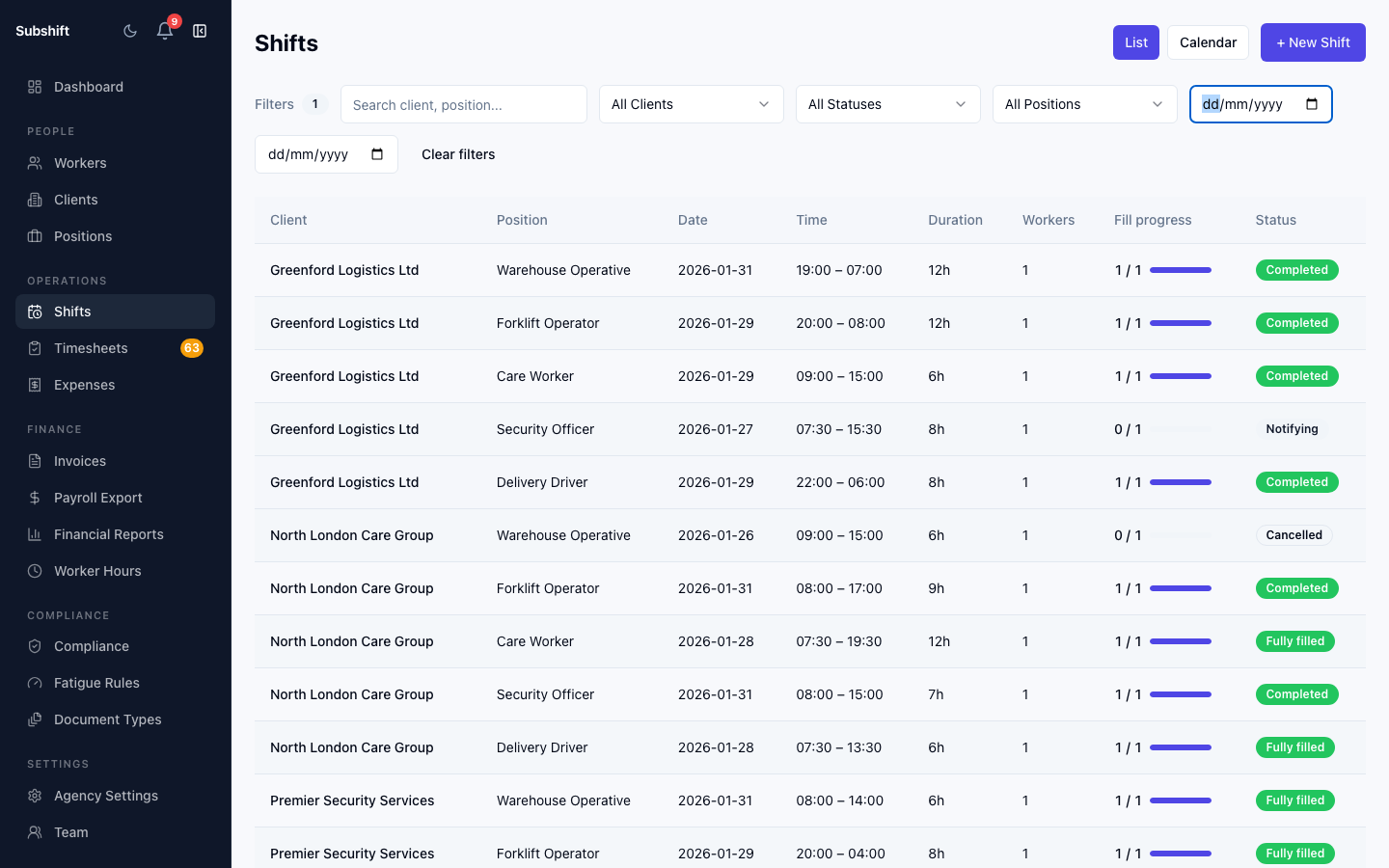
List view vs. calendar view
Toggle between List and Calendar using the controls at the top right of the shifts page.
- List view — paginated table of shift groups, sortable by date. Best for bulk review and status checking.
- Calendar view — shifts laid out by date in a monthly calendar. Best for spotting gaps and busy periods at a glance.
Status badges
Each shift group shows a colour-coded status badge:
- Notifying — the system is actively notifying eligible workers.
- Partially filled — some slots are accepted but not all.
- Fully filled — all required workers have accepted.
- Completed — the shift date has passed and the shift is done.
- Unfilled — no eligible workers could be found or all declined.
- Cancelled — the shift was cancelled before it was filled or worked.
Filtering shifts
Use the filters above the list to narrow down:
- Status — filter by one or more status badges.
- Client — show shifts for a specific client only.
- Date range — restrict to a start and end date.
Tip
Shift groups and child shifts
A shift group is the top-level entity — it holds the role, date, client, and how many workers are needed. Each individual worker slot underneath is a child shift. Click a shift group row to open the group detail page, which shows each child shift and its individual status.
Related
- Creating a shift — step-by-step guide
- Shift groups — understanding the group detail page
- Shift requests — handling inbound requests from clients
- Dashboard — at-risk shift monitoring