Shifts
The Shifts section shows every shift you've requested, from open requests through to completed and cancelled. Use it to track fill progress, view who's been assigned, and manage upcoming cover.
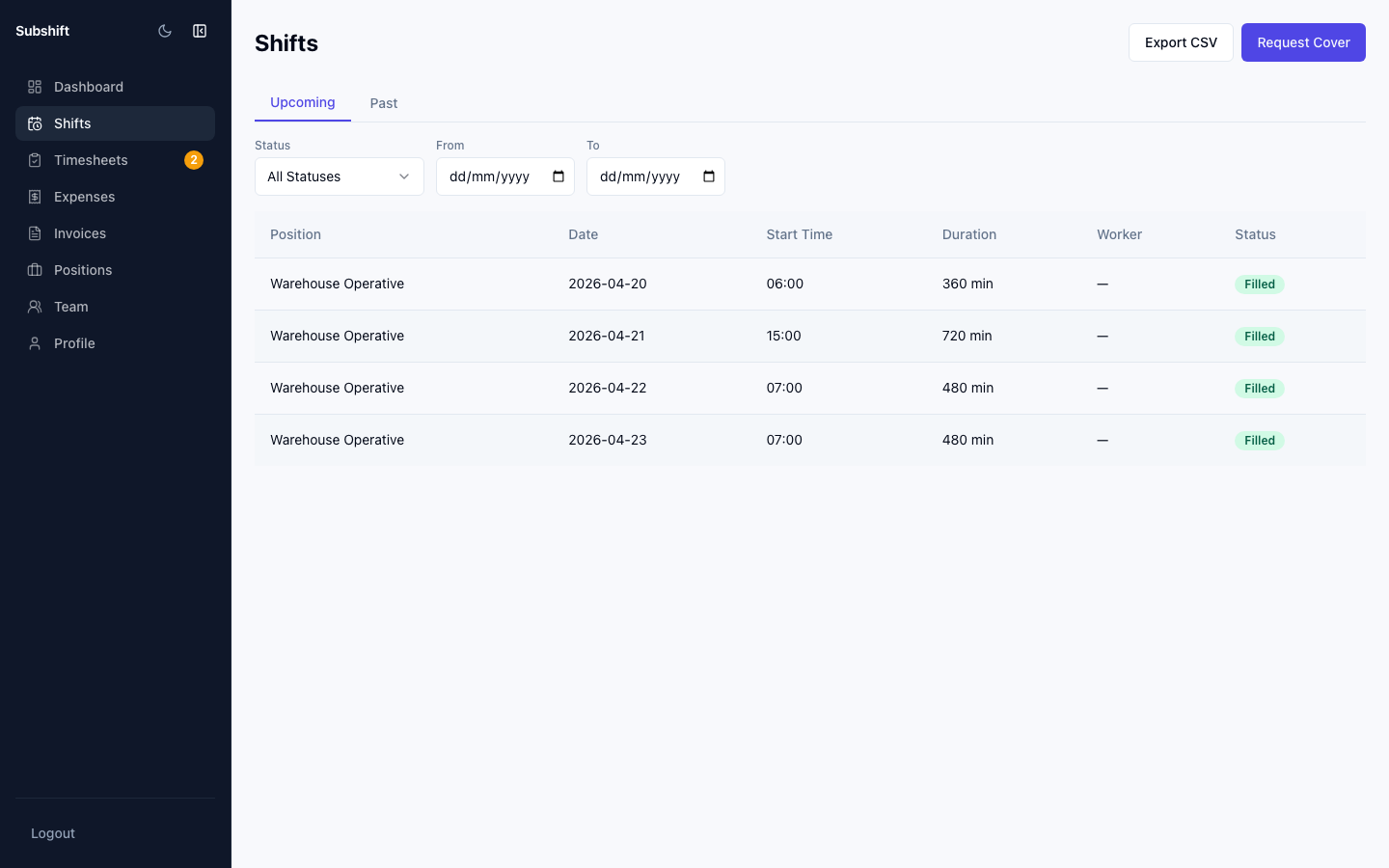
Navigating to shifts
Click Shifts in the left sidebar.
Filtering
Use the filters above the list to narrow by:
- Status — see only shifts in a specific stage (see below).
- Date range — focus on a specific period.
- Position — view shifts for a single role.
Shift statuses
From your perspective as a client, shifts move through these statuses:
- Requested — you've submitted the shift and your agency is working on it.
- Being filled — your agency has identified workers and is notifying them. Slots fill as workers accept.
- Partially filled — some slots are filled but not all. Your agency is still working on the remaining slots.
- Fully filled — all workers are confirmed. No further action needed from you.
- Completed — the shift date has passed and workers have submitted timesheets.
- Unfilled — your agency was unable to find workers for this shift. Contact them to discuss alternatives.
- Cancelled — the shift was cancelled by you or your agency.
Note
Subshift handles worker matching and notification automatically — you don't need to do anything once a shift is requested. You'll see the status update in real time as workers accept.
Related
- Requesting a shift — open a new shift request
- Shift detail — view assigned workers and manage a specific shift
- Timesheets — approve timesheets after shifts are completed