Invoice detail
The invoice detail page shows the full breakdown of a single invoice: the client it belongs to, the included timesheets, calculated amounts, and status controls for marking it as sent or paid.
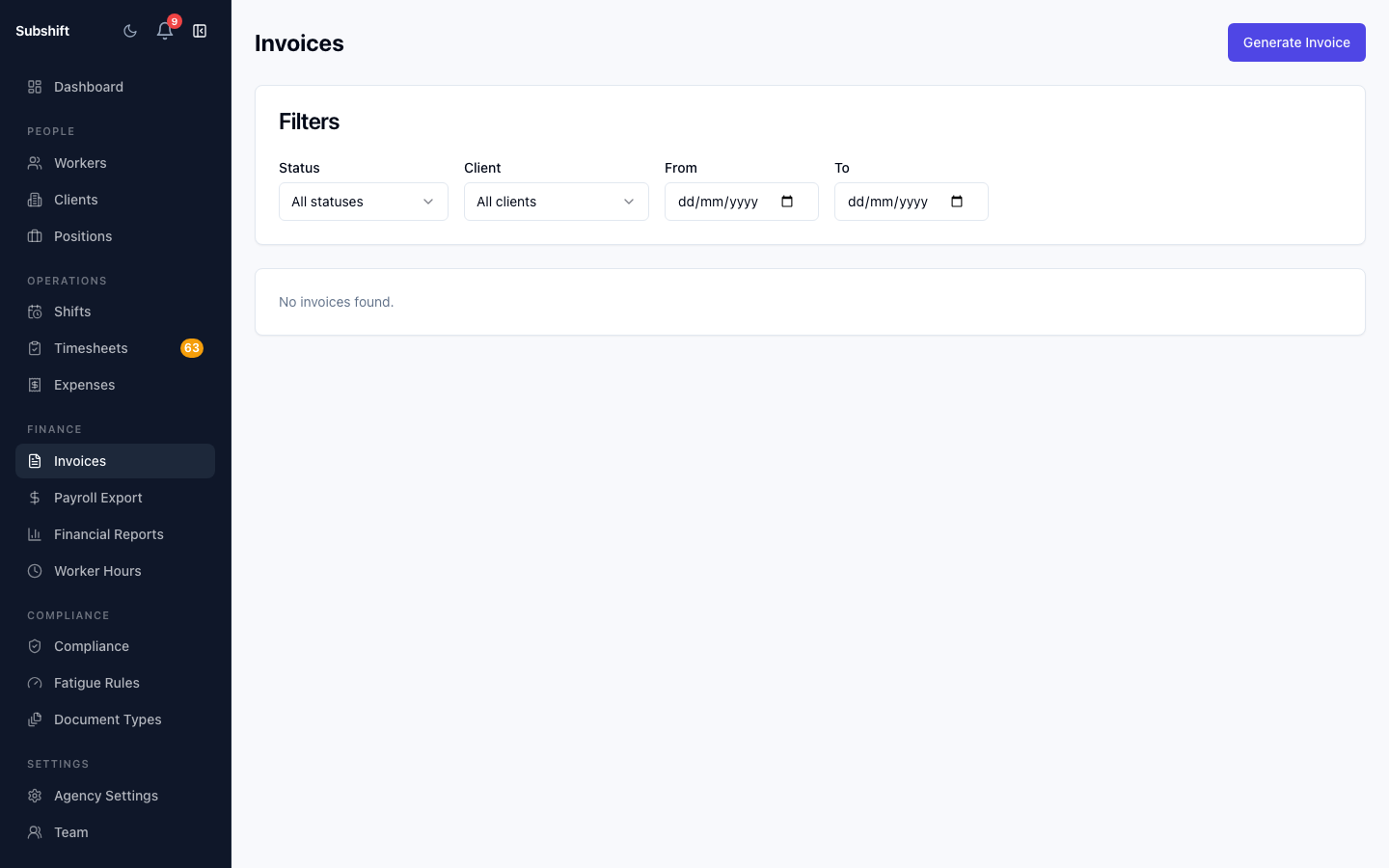
Invoice header
The top section of the invoice detail shows:
- Invoice number — auto-generated sequential number.
- Client — the business being billed.
- Issue date — the date the invoice was generated.
- Period — the shift date range covered by this invoice.
- Status — DRAFT, SENT, or PAID.
- Total — sum of all line items.
Line items
Each row in the line items table corresponds to one approved timesheet. It shows the worker name, shift date, hours worked, rate, and the calculated amount for that timesheet.
Note
Rates are taken from the rate card configured for the client at the time the timesheet was approved. If you need to dispute a rate, contact support — rate adjustments require a corrected invoice.
Marking as sent
- Send the invoice to the client by email or your preferred method outside of Subshift.
- Return to the invoice detail and click Mark as sent.
- The status changes to SENT.
Marking as paid
- When the client's payment is received, open the invoice detail.
- Click Mark as paid.
- The status changes to PAID and the invoice is excluded from outstanding-balance reports.
Tip
Use the Reports → Financial page to see total outstanding invoice value and payment trends across all clients.
Related
- Invoices list — browse all invoices
- Financial report — outstanding balances and revenue overview
- Generating invoices — how invoices are created