Shift requests
When a client raises a shift through their portal, it appears in your Shift requests queue before being activated. This gives you a chance to review the details, confirm the position is valid, and approve or decline before the matching engine starts.
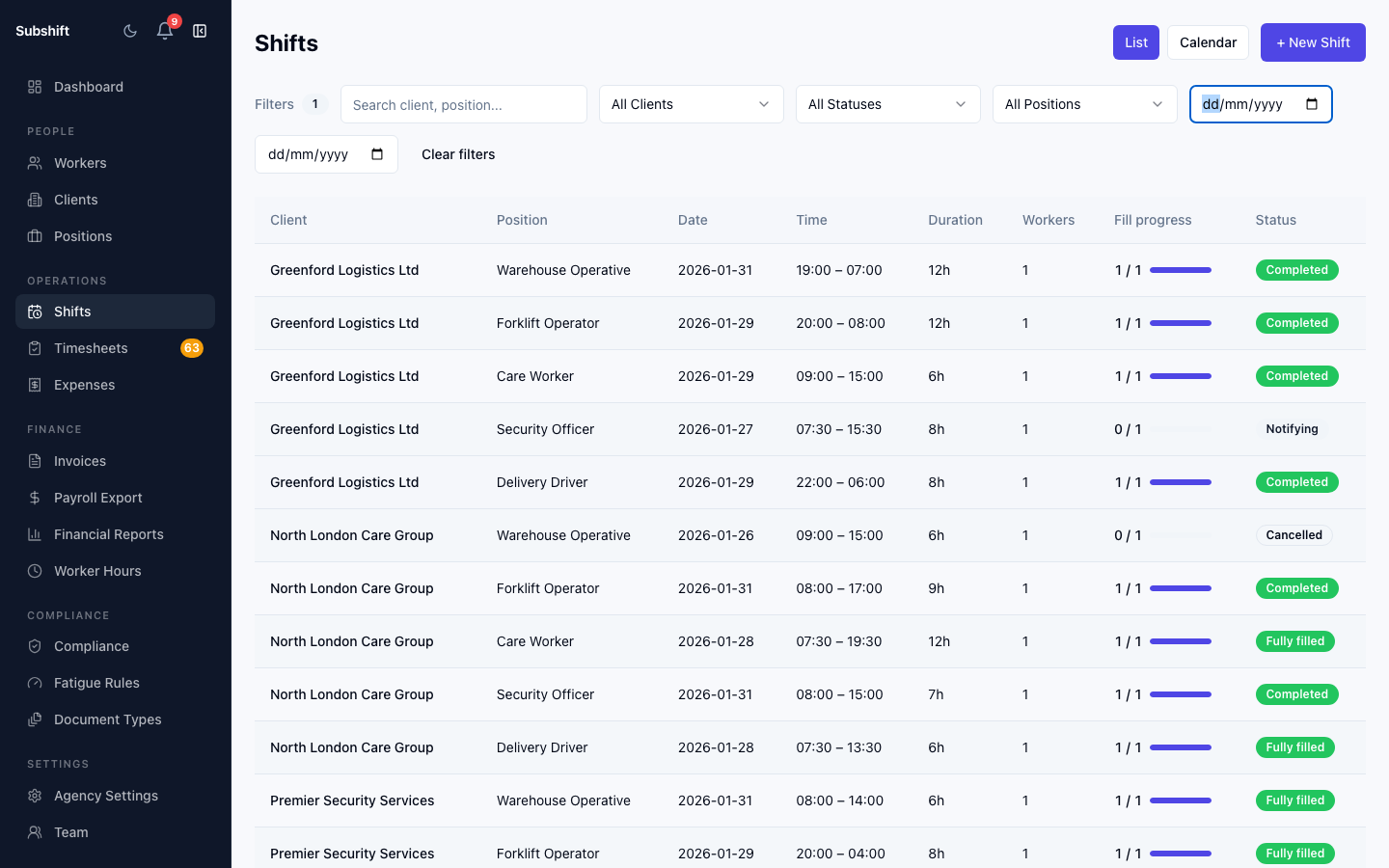
Viewing inbound requests
Go to Shifts → Requests in the sidebar. The queue shows all pending client requests, ordered by submission time (newest first). Each row shows the client name, position, date, time, number of workers, and any notes the client added.
Approving a request
- Click the request row to open the detail view.
- Review the details: confirm the position is on the client's allowed list, the date and time are achievable, and the worker count is reasonable.
- Click Approve. Subshift converts the request into an active shift and immediately begins matching workers.
Tip
Once approved, the shift appears in the main shifts list with status Notifying. The client can see the live fill status in their portal.
Declining a request
- Open the request detail.
- Click Decline and enter a reason (optional but recommended — the reason is visible to the client).
- The request is marked as declined. The client is notified and can re-submit with corrected details.
Note
Declining a request does not prevent the client from submitting another. If the client repeatedly submits invalid requests, review their allowed positions in Client detail or contact them directly.
Related
- Creating a shift — manually creating shifts on behalf of a client
- Client detail — managing allowed positions
- Client Portal — Requesting a shift