Positions
The Positions page shows which roles your agency has approved for your site. Only these positions appear in the dropdown when you request a shift, so keeping this list accurate is important.
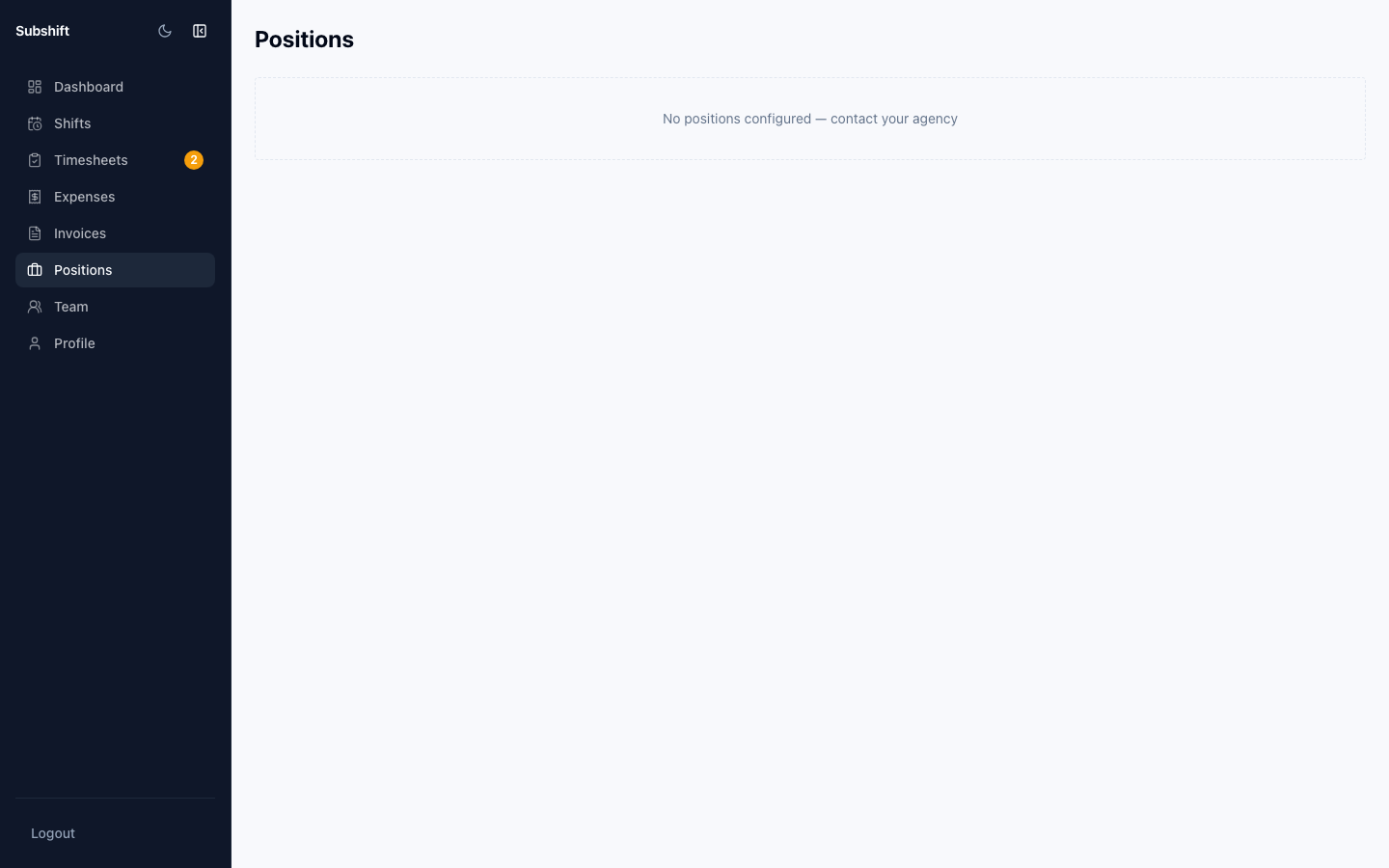
Viewing your positions
- Click Positions in the left sidebar.
- The list shows every position your agency has enabled for your business.
What if a position is missing?
If you need to request cover for a role that isn't in your list, you cannot add positions yourself — only your agency can do this. Contact your agency and ask them to add the position to your site's allowed list.
Tip
When your agency adds a new position to your account, it will appear immediately in the shift request dropdown. You don't need to refresh or make any changes.
What positions mean
Each position represents a specific role or skill (for example "HGV1 Driver" or "Healthcare Assistant"). Your agency maintains the position definitions and assigns qualified workers to each one. Workers can only be offered a shift for a position they're qualified in.
Note
If a particular position keeps returning unfilled shifts, it may indicate a supply gap for that role. Discuss this with your agency — they may be able to recruit or cross-qualify additional workers.
Related
- Requesting a shift — use positions when submitting shift requests
- Getting started — overview of the portal sections