Compliance overview
Your compliance status tells your agency whether you have all the required documents on file and up to date. If any required document is missing or expired, your status changes to non-compliant and you stop receiving shift offers until it's resolved.
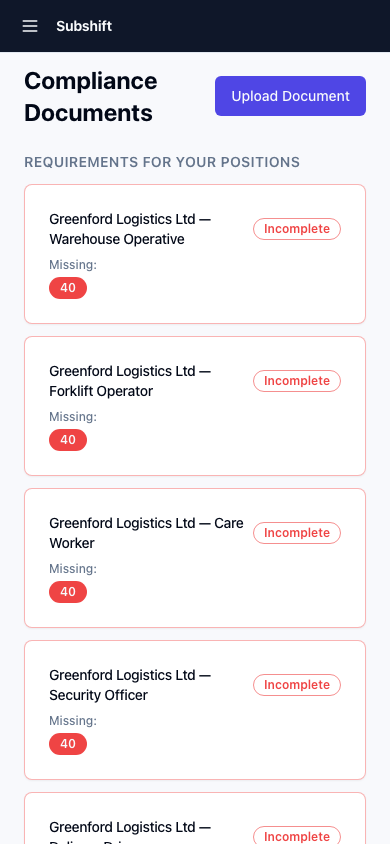
Viewing your compliance status
- Tap Profile in the bottom navigation.
- Tap Compliance.
Each document type shows a status:
- Valid (green) — uploaded and not expiring soon.
- Expiring soon (amber) — valid today but expiring within the next 30 days. You can still receive shifts, but action is needed.
- Expired or missing (red) — the document has expired or hasn't been uploaded. You will not receive shift offers for positions that require this document.
- Not required — this document isn't required for your registered positions.
What "non-compliant" means
If your overall compliance status shows as non-compliant, it means at least one required document is expired or missing. Your agency's system will not offer you shifts until the document is resolved — even if you're fully available.
Warning
Being non-compliant doesn't mean you've done anything wrong — it usually just means a document needs renewing. Upload the new document as soon as it's available and your status will update immediately.
What to do if you're non-compliant
- Check the compliance screen to see which document is flagged red.
- If you have the new document, upload it now — see Uploading documents.
- If you're waiting for the document to arrive (e.g. a renewed licence in the post), let your agency know the expected date.
Tip
Don't wait until a document expires to renew it. Upload the new version as soon as you have it — your agency's system switches to the new document immediately.
Related
- Uploading documents — how to take a photo and upload a document
- Positions — document requirements vary by position
- Getting started — upload documents early to speed up approval