Team
The Team page lets you manage who at your business has access to the Subshift client portal. You can invite colleagues, update their roles, and remove users who no longer need access.
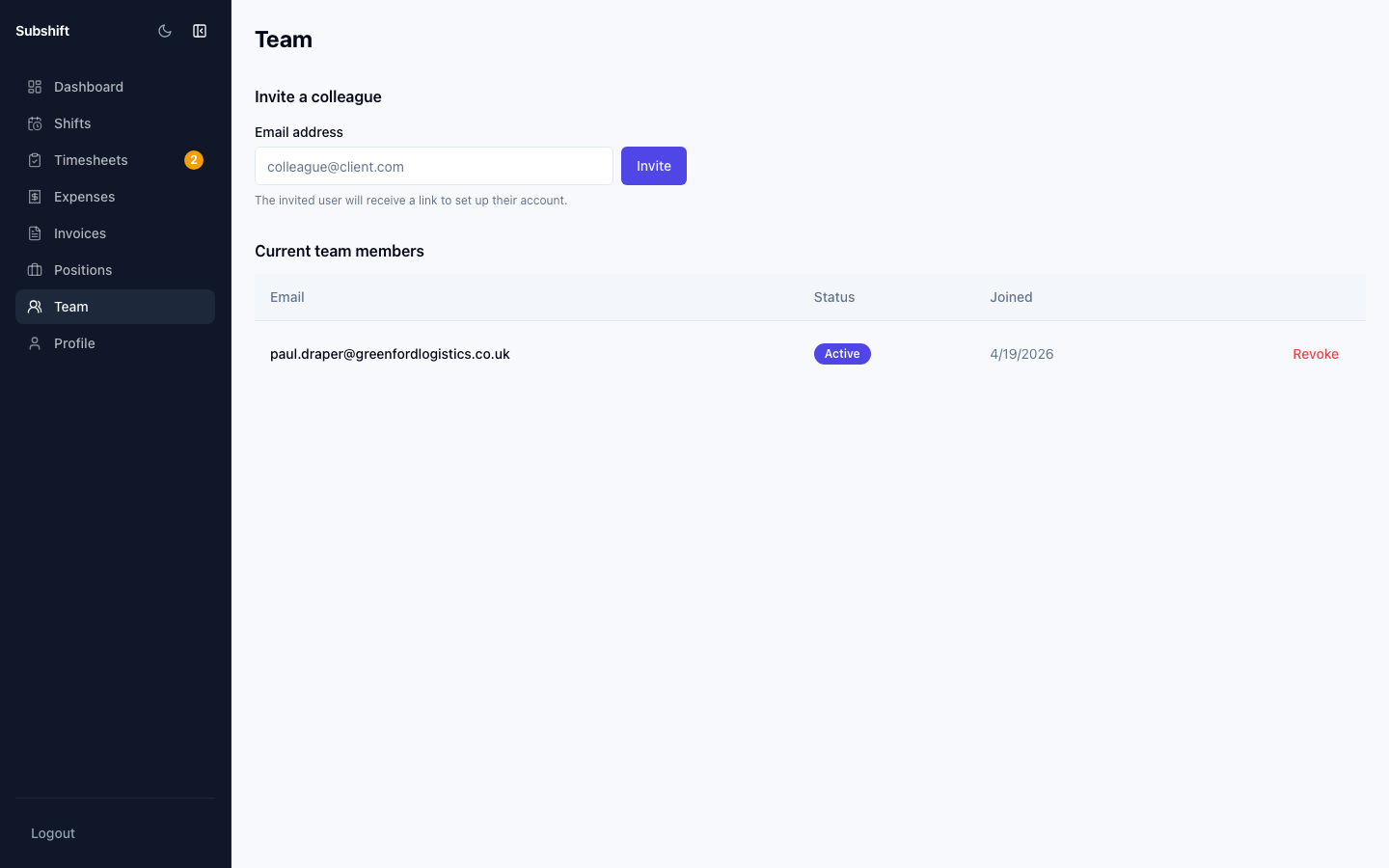
Viewing your team
- Click Team in the left sidebar.
- The list shows every user who currently has access to your business's portal.
Inviting a team member
- Click Invite member.
- Enter their email address.
- Click Send invite.
The person receives an invitation email with a link to create their account. While their invite is pending it shows as "Invited" in the team list.
Tip
If the invite email doesn't arrive within a few minutes, use Resend invite. Also ask the recipient to check their spam folder.
Removing a team member
- Find the member in the list.
- Click Remove.
- Confirm in the dialog.
The removed user immediately loses access to the portal.
Warning
Removing your own account is not permitted if you are the only user with access. Add another user first before removing yourself.
Related
- Profile — update your company contact and billing details
- Getting started — overview of the portal for new users